Changelog

Follow new updates and improvements to Hirevire.

Generate scorecards with AI and score on resumes too

Setting up a scorecard no longer starts from a blank template. AI reads your job and its questions, then drafts factors and rubrics tailored to that role.

What's New

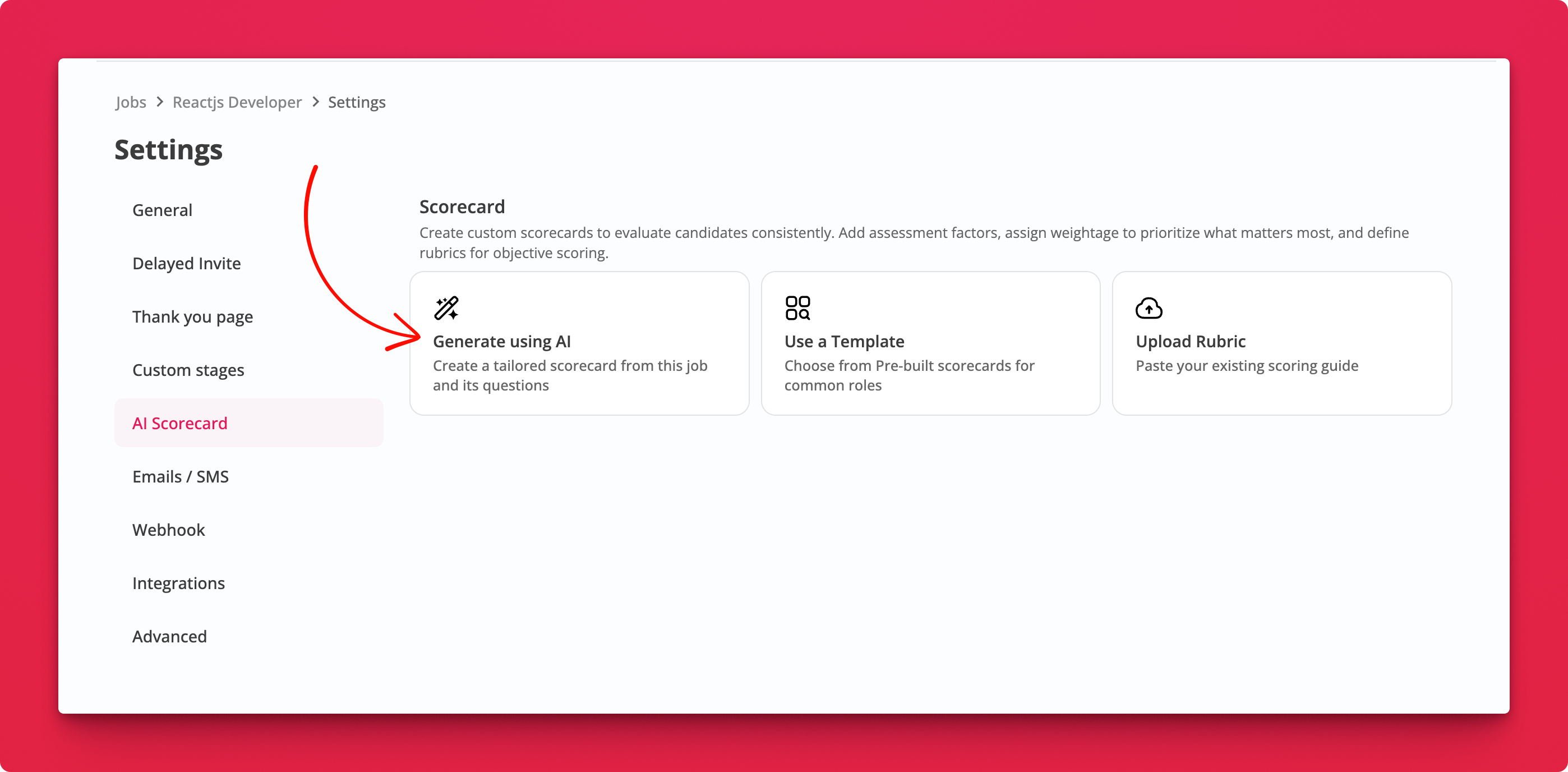
  • Generate using AI. A third option alongside Use a Template and Upload Rubric, built from this job's title, description, and questions.

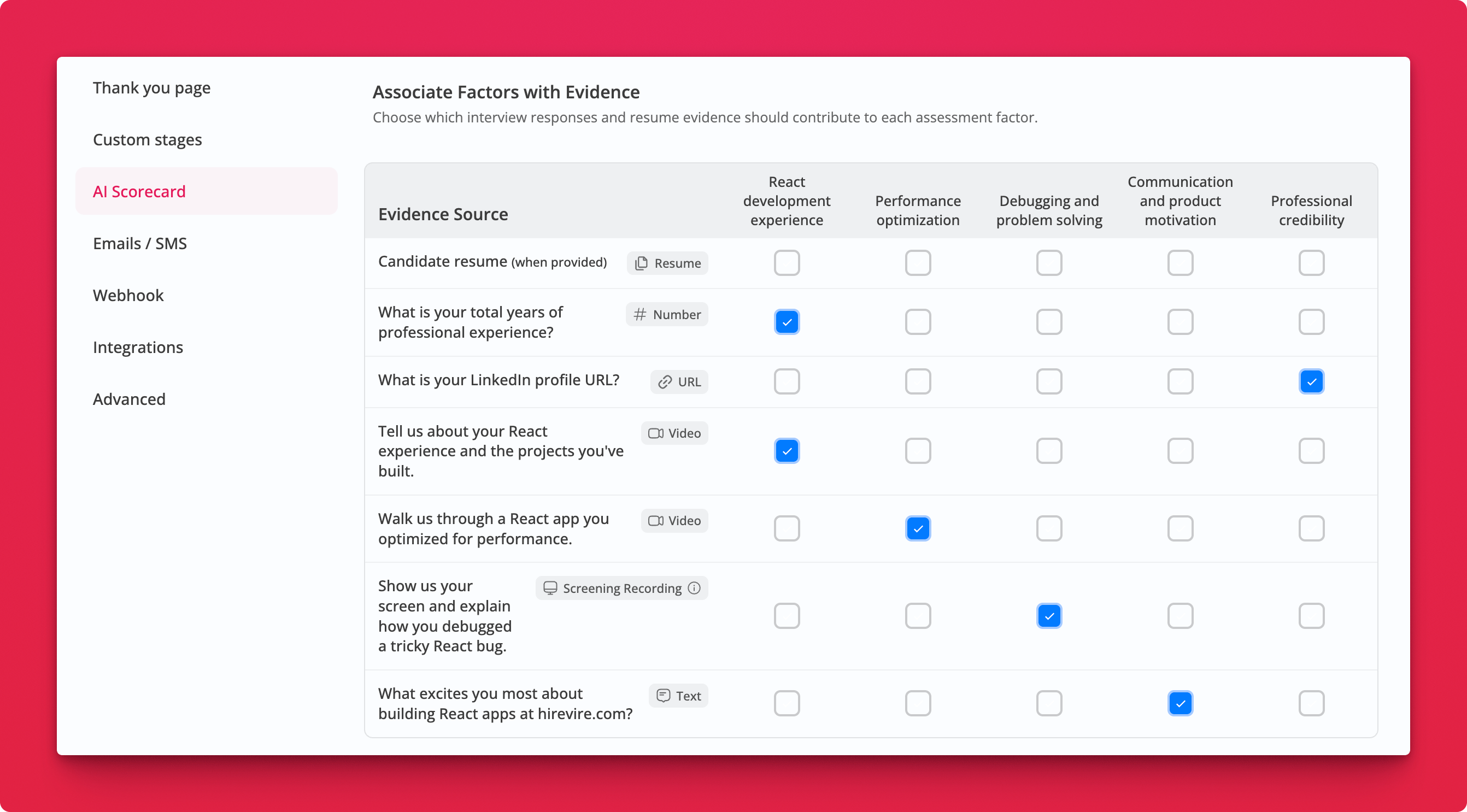
  • More evidence sources. Scoring now uses standard responses (numbers, URLs, text) and resumes and text-based file uploads, not just video answers.

  • The evidence table renamed to Associate Factors with Evidence, with a row for the candidate's resume and a type label on every question.
How It Works

Where: Job Settings → AI Scorecard

  1. Click Generate using AI. Factors, weightage, and rubrics are drafted for you.

  2. Review the evidence table. Tick which responses feed each factor. Resume evidence is used when the candidate provides one.

  3. Edit anything. Generated factors are fully customisable, same as template-based ones.
Notes

  • A years-of-experience number or a LinkedIn URL can now back a factor on its own, so you can score credibility without asking for another video.
Improved

Import questions in bulk and pick how many AI generates

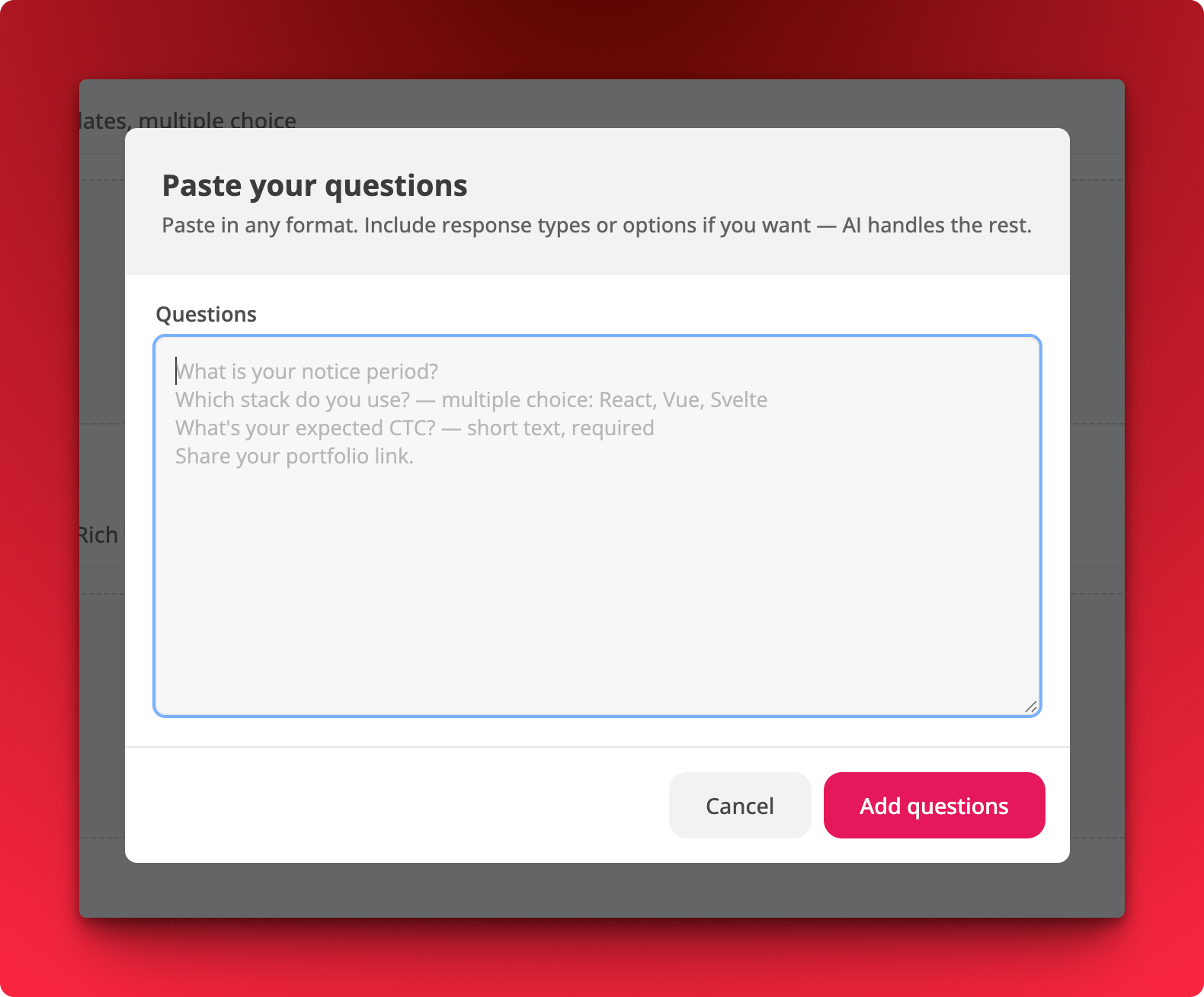
Moving a job over from a Google Doc or another tool? Paste your whole question list at once instead of typing them in one by one.

What's New

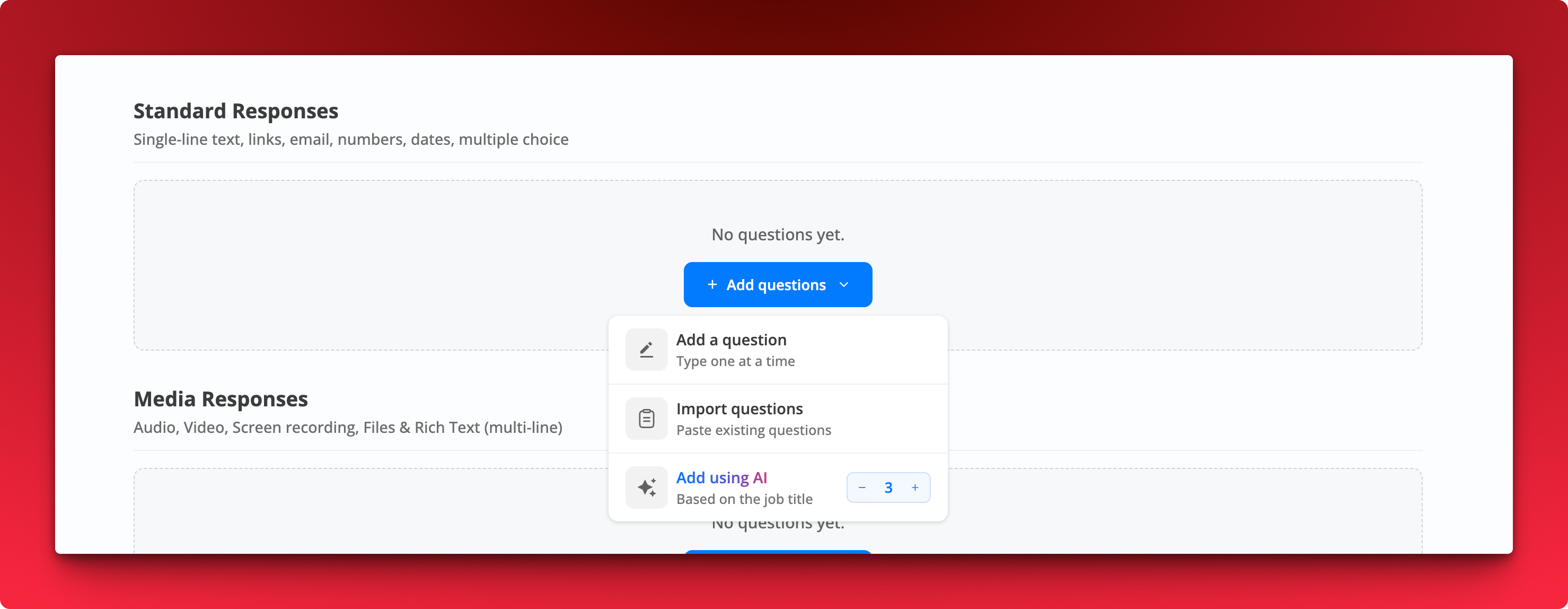
  • Import questions. Paste multiple questions in any format and AI parses them into properly configured questions.

  • Include response types and options inline if you want, for example Which stack do you use? multiple choice: React, Vue, Svelte or What's your expected CTC? short text, required

  • Pick a count for AI generation. The Add using AI option now takes a number, so you decide how many questions get generated

How It Works

Where: Job → Questions → Add questions

  1. Choose Import questions and paste your list, one question per line.

  2. Click Add questions. Response types, options, and required flags are picked up from whatever you included.

  3. Review and edit anything AI got wrong before saving.

Notes

  • Works for both Standard Responses and Media Responses.

  • Formatting is flexible. Plain lines work fine if you would rather set response types yourself afterward.

Improved

Earlier updates